
How Do I Install Silicon Motion InstantView on macOS 26, 15, 14, 13, and 12?
Applicable To
[UGA-HDMI-S, UGA-DP-S, UGA-HDMI-2S, USBC-768H4, UD-768PDZ]
When setting up a Silicon Motion device on macOS 12 and newer, the InstantView application must be installed and granted specific permissions to function. If you are unsure of the macOS version you are using, you can check by clicking on the Apple logo in the top left of your Mac display and selecting "About This Mac".
Instructions
- Download the Silicon Motion InstantView application for your version of macOS.
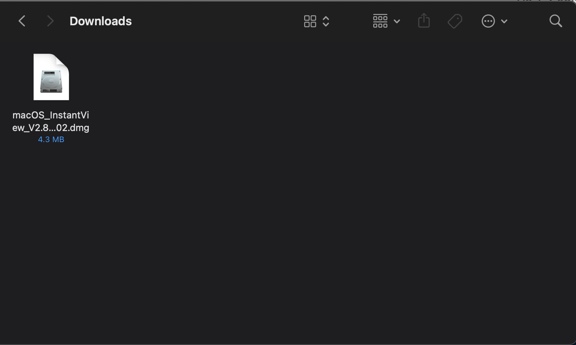
- Double-click on the file you downloaded to start the application installer.
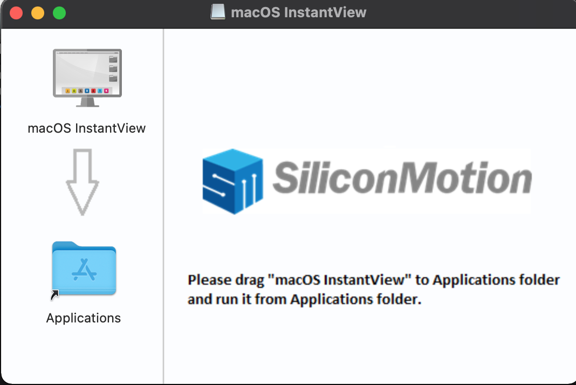
- Drag the macOS InstantView app icon to the Applications icon inside of the macOS InstantView window itself.
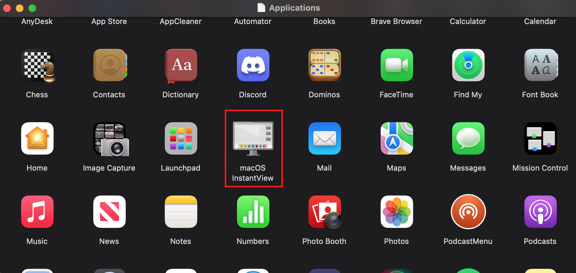
- Navigate to your Launchpad or Applications folder to locate the InstantView app and double-click to launch it.
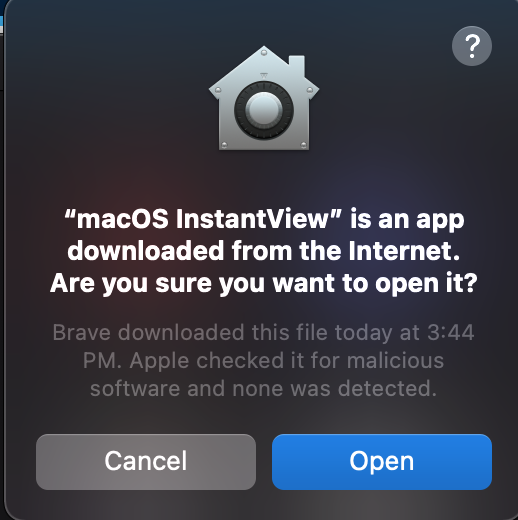
- Click Open.
- Click Open System Preferences. Note: this should automatically open the Security and Privacy section, but if it does not you can manually open the Security and Privacy settings.
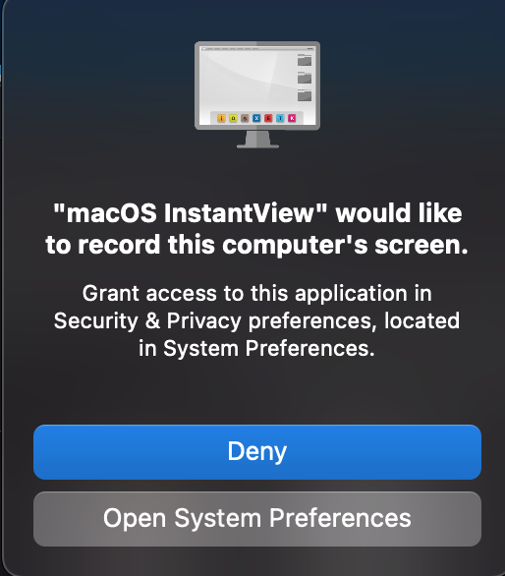
- Click on the switch to enable screen recording for the macOS InstantView application.
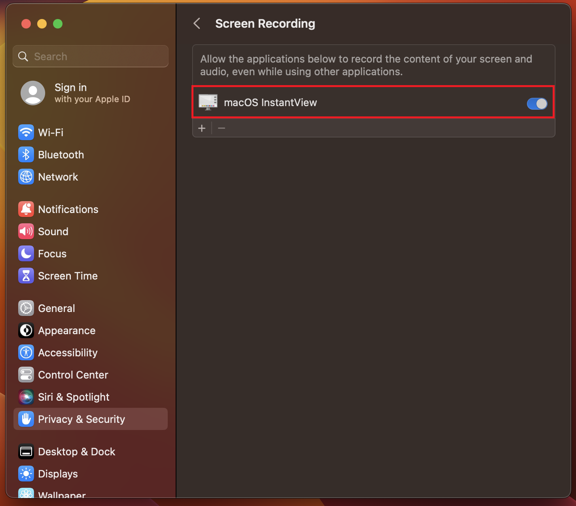
- If prompted, enter your password and click the 'Modify Settings' button.
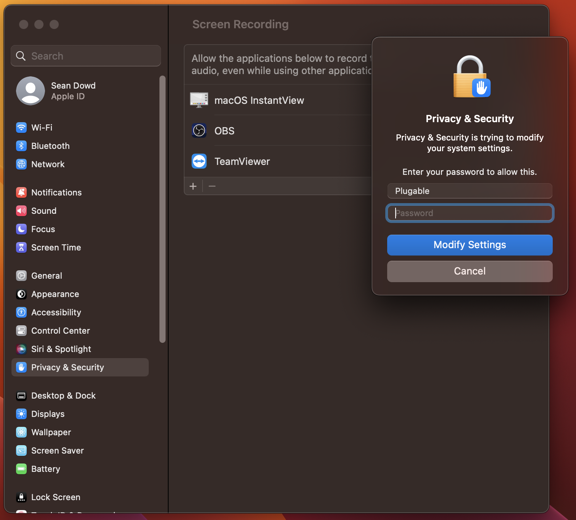
- You will be prompted to Quit and Reopen the InstantView application in order for the change to take effect. Please do so.
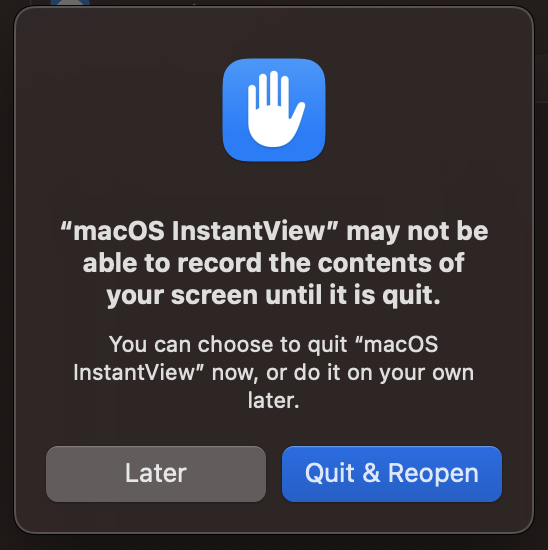
- Note that with the release of macOS 15 Sequoia, Apple instituted a new policy whereby this permission must initially be allowed for one month and then be renewed on a monthly basis. If the permission is not renewed, then the Silicon Motion device will not function. (Please note: The Silicon Motion InstantView application does not record or store any information. This permission must be granted in order for the InstantView application to access the information it needs to generate the image shown on the Silicon Motion-connected displays.)
- Right click on the InstantView icon that is now present within the Apple Menu bar at the top of your screen to reveal the InstantView quick access menu.
- Click "Display before Login" to enable the Silicon Motion-connected displays to be activated at the macOS Login Screen.
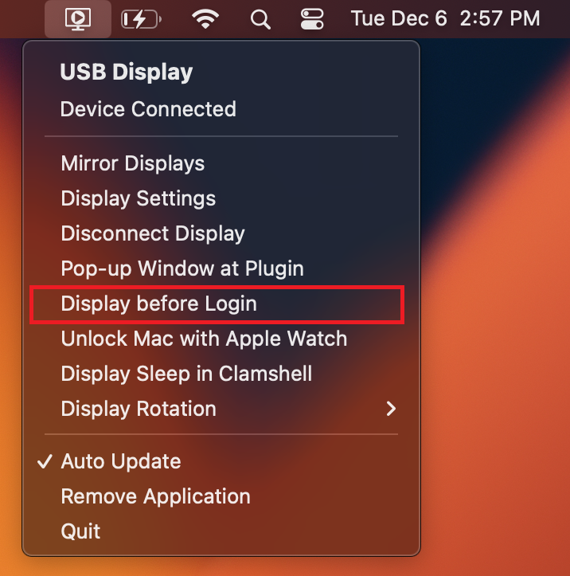
- Ensure that the Auto Update setting is checked in order to receive automatic InstantView application updates.
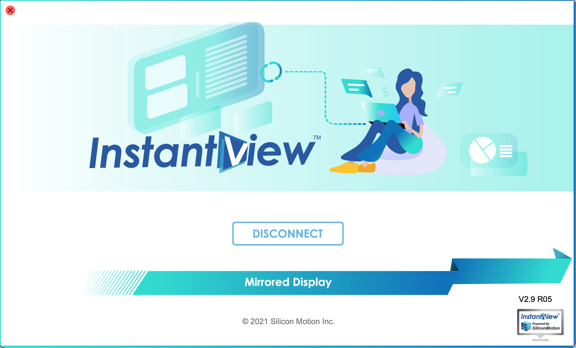
- Left click on the InstantView icon within the Apple Menu bar at the top of your screen to reveal the InstantView application. Here you can quickly disconnect the displays and you can quickly change your Silicon Motion-connected displays to Mirrored or Extended mode.
Expected Result
Once the drivers are installed and screen recording permissions have been accepted you will see the monitor connected to the adapter receive a video signal.
If the Issue Persists
If you have any additional questions, please let us by reaching out to us directly at support@plugable.com
