
How to Manually Install the USB-BT4LE Bluetooth Adapter Driver in Windows 10?
Applicable To
- Plugable USB-BT4LE Bluetooth 4 Adapter
Normally, Windows 10 will automatically install the 12.0.1.750 driver for the Plugable Bluetooth 4.0 USB Adapter. However, there have been some issues with the driver install process in the Windows 10 October 2020 Update (also known as the 20H2 or v2009 update). If the USB-BT4LE Bluetooth adapter does not install automatically or function correctly in Windows 10, it is commonly resolved by following the manual driver installation steps below.
Instructions or Troubleshooting Steps
Check if another Bluetooth Radio is active in Device Manager
One of the more common Bluetooth issues is that Windows can only handle using 1 Bluetooth Radio/Adapter at a time If your computer currently has a Bluetooth Radio/Adapter active it will prevent our adapter from installing its drivers.
There is a quick way to check for this and fix it. One way to check if your PC currently has another Bluetooth adapter is to navigate to the following:
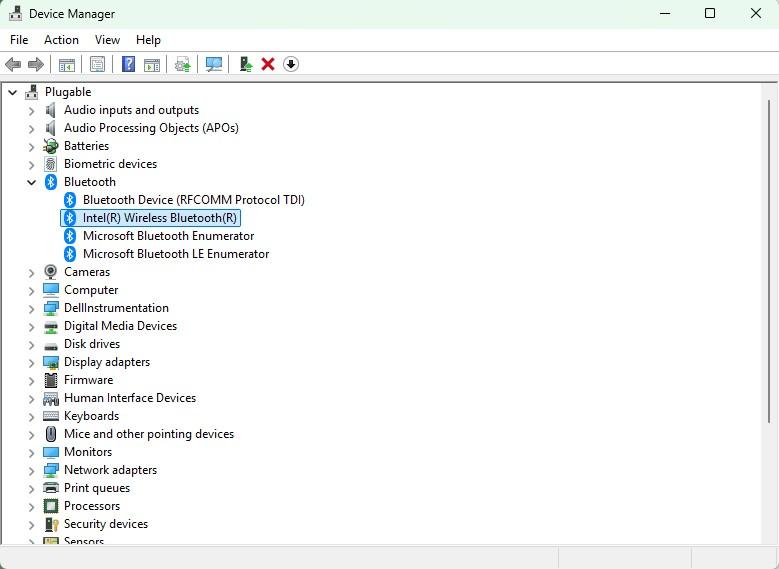
- Please navigate to the 'Device Manager' app
- If there is a section for 'Bluetooth' that is a sign there is another adapter active
- One common Bluetooth device is 'Intel Bluetooth', there are others but that is one example
- By 'Right Clicking' and selecting 'Disable' this should allow Windows Update to automatically install the drivers for our adapter
- If this is the case, then restart your PC and check Device Manager again as you should see ours listed as "Broadcom BCM20702 Bluetooth 4.0 USB Device"
Running Windows Update
- Search the Start Menu for
update- Alternatively, press Windows Key + I to open up the options, then search for update.
- Click the 'Check for Updates' option
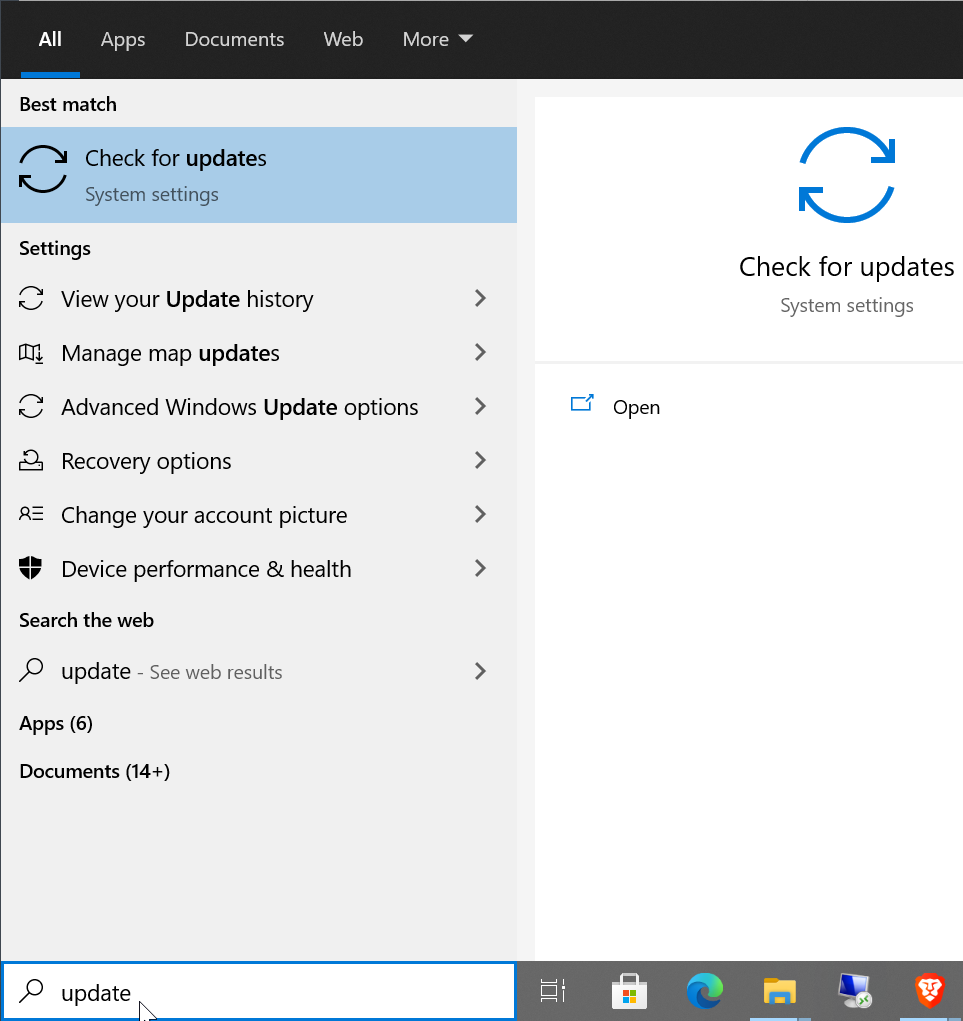
- Click the 'Check for updates' button in the window that appears
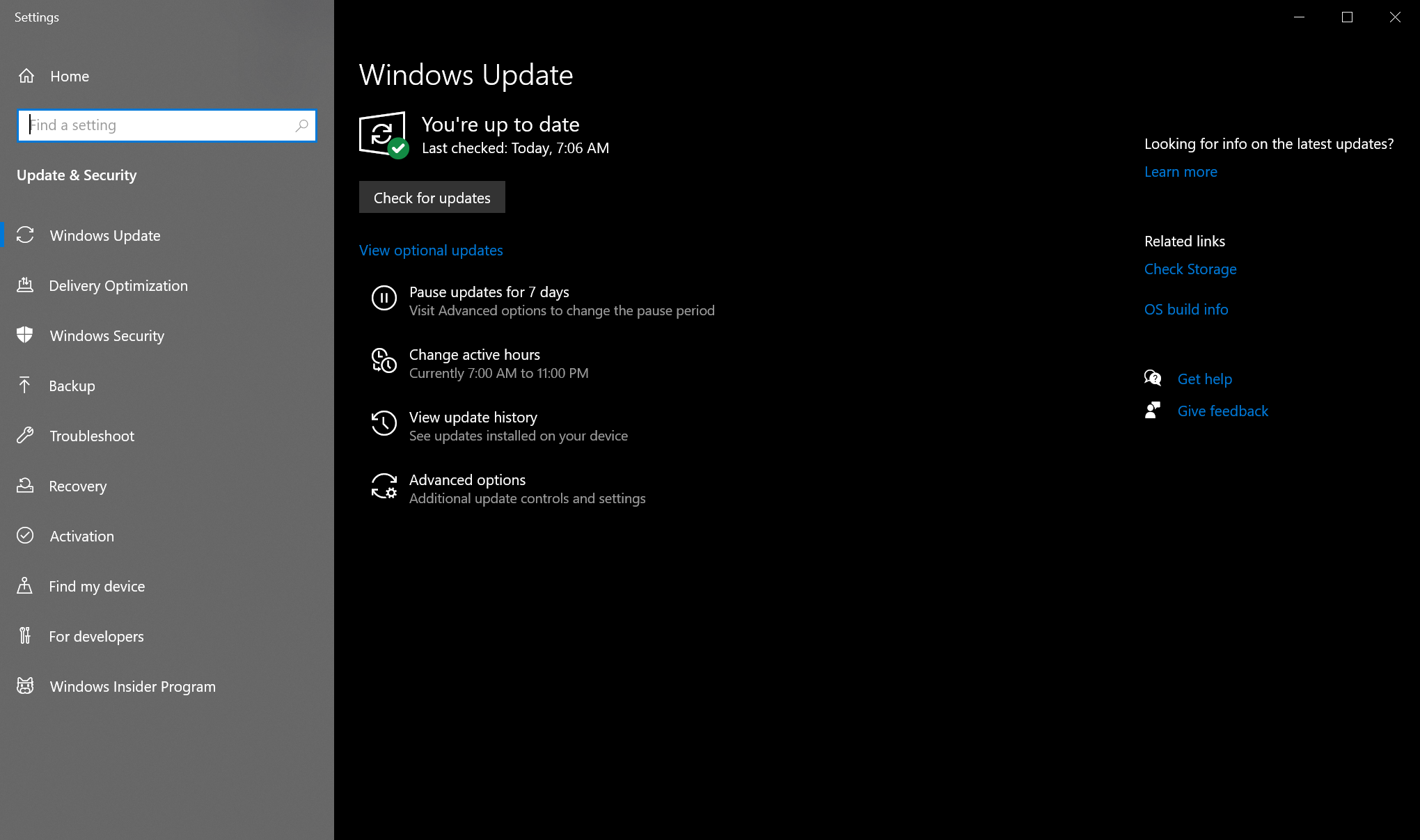
- You may need to click the 'View optional updates' link shown in this window to find the option for installing the adapter's driver.
If Windows Update Doesn't Work
If the driver does not install through this process, please try the steps below to manually install the 12.0.1.750 driver that is normally installed through Windows Update.
- Download usb-bt4le-win10.zip and open it. It should open through Compressed Folder Tools, unless you have other decompression software installed
- If you have a 32-bit (x86) version of Windows 10, please download usb-bt4le-win10_x86.zip instead.
- You should see a folder in there called Broadcom 64 (or Broadcom 32). Drag that folder to your desktop and open it. This is to extract the files (you will encounter problems if you don't extract the files before continuing)
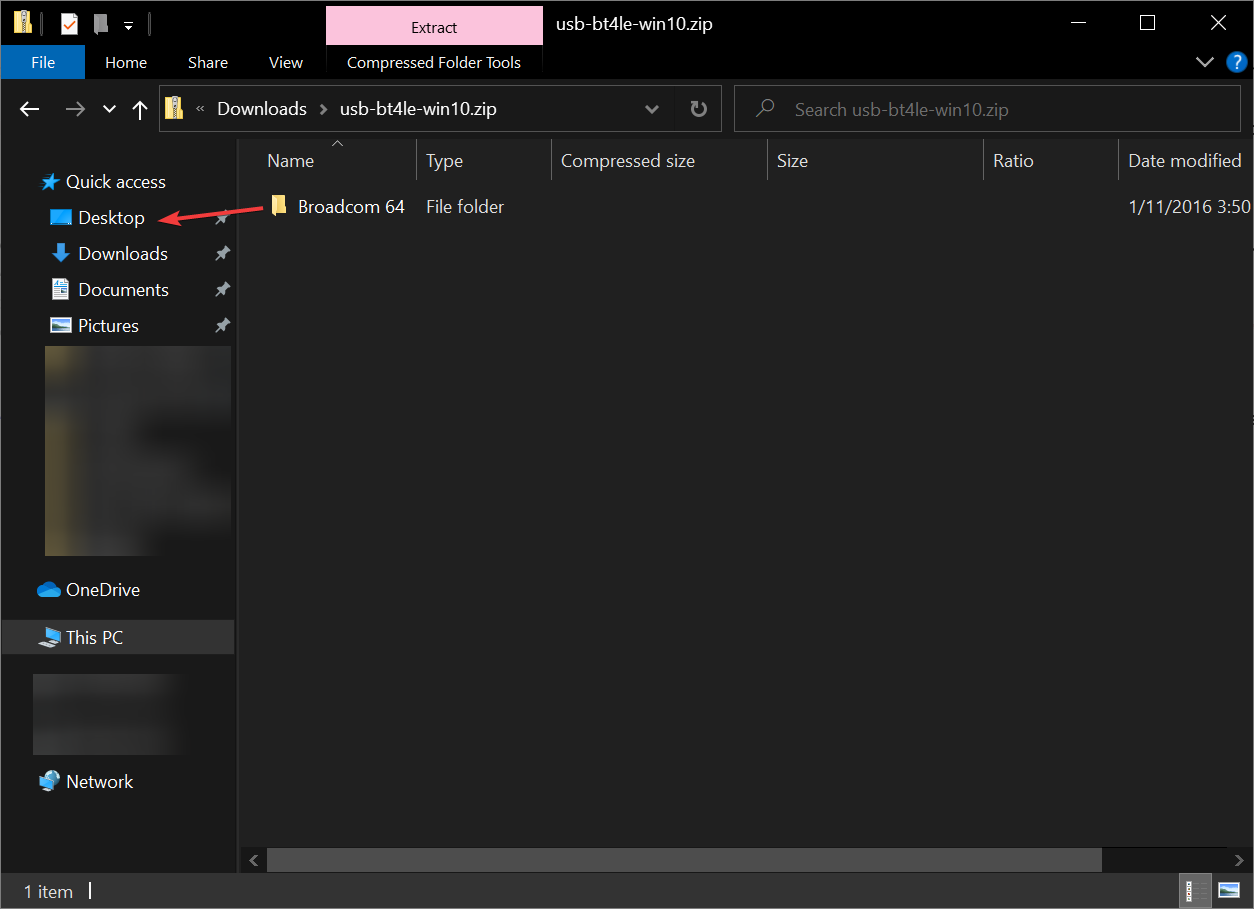
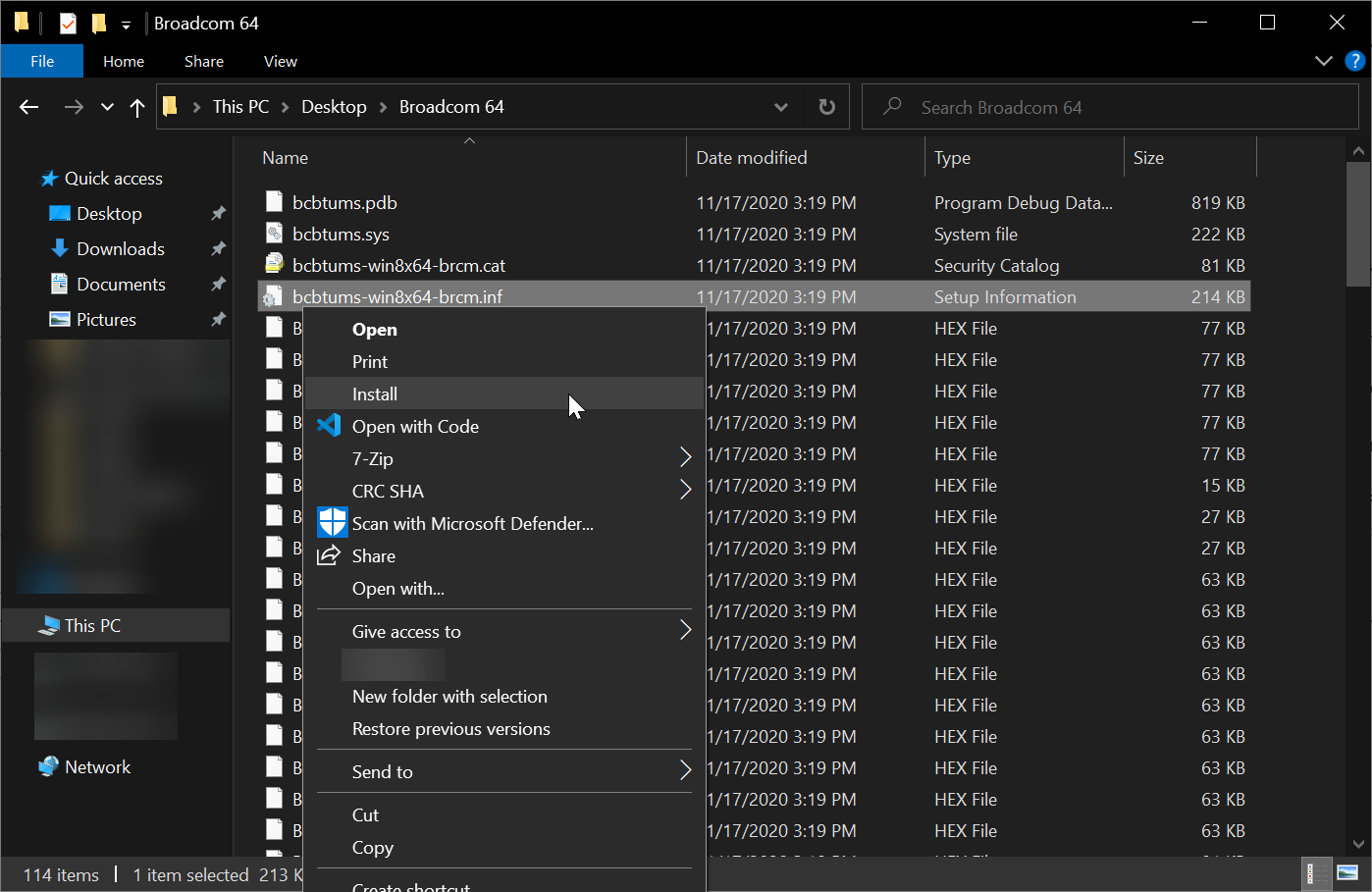
- Inside the extracted folder on your desktop, you will find a lot of files, but near the top should be one named "bcbtums-win8x64-brcm.inf" (or bcbtums-win8x86-brcm.inf) Right-click on that one and select Install. If ".inf" doesn't show, use the one that says "setup information"
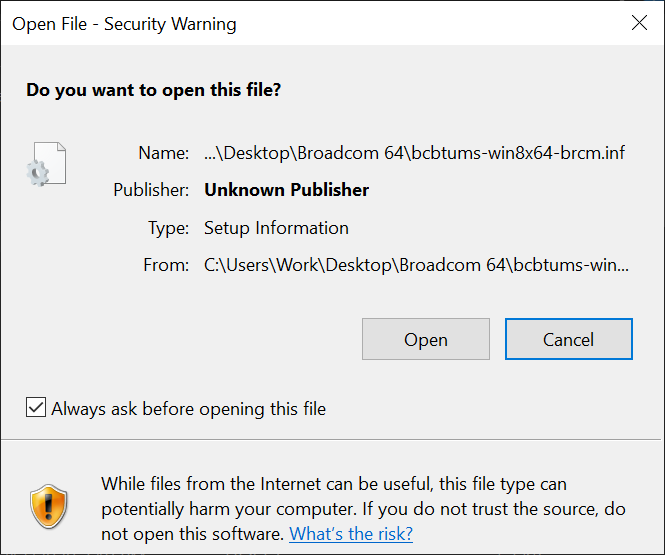
- Click Yes on the User Account Control message. You should see a message that the operation completed successfully
- Restart your PC with the adapter installed and then try using Bluetooth again, follow our pairing guide to connect your device
Expected Result
The Bluetooth adapter should be correctly identified in the Device Manager under the Bluetooth section as "Broadcom BCM20702 Bluetooth 4.0 USB Device". You should now be able to discover and pair Bluetooth devices with your Windows 10 system.
If there are still issues, please contact us for additional support.
