
How Do I Enable Screen Recording for macOS InstantView?
If your Silicon Motion-enabled docking station or graphics adapter is connected but your displays are not working properly, macOS InstantView may not have the required “Screen Recording” permission. Enabling this permission allows InstantView to access the screen pixels needed to render images on your connected displays.
Why Does macOS InstantView Need Screen Recording Permission?
As of macOS Catalina (version 10.15), Silicon Motion drivers that are installed require that the “Screen Recording” permission be granted by the user. While this permission, when used in conjunction with Silicon Motion, is not recording in a traditional sense, it does allow the software to access the pixels it needs to render images (mirrored or extended). It then sends these pixels over USB from the computer to the display connected to your Silicon Motion device.
When on your desktop you will see a purple screen icon, this message will appear saying that "macOS InstantView is capturing your screen". No sort of video storage or screen recording is being done by macOS InstantView, it's simply capturing the screen to render images for the additional monitors.
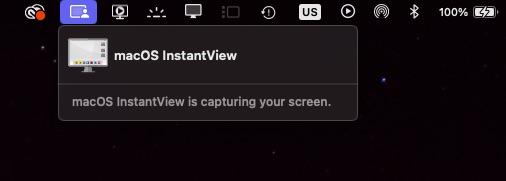
Note: It does not capture or send any data.
What Do the macOS Screen Sharing Messages Mean?
When your Mac is on the lock screen, in the menu bar it will show "Your Screen is being observed". This message is simply implying that the macOS InstantView is running in the background.

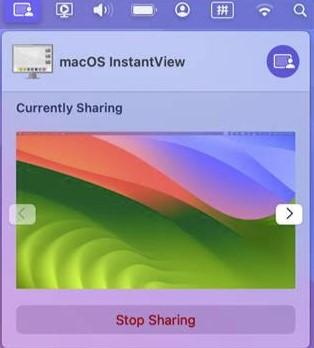
In the macOS menu bar you will see a Purple square with a person icon. If you select this, it will show a message saying "Currently Sharing". This is the macOS InstantView software using the screen sharing API to enable your extended display. There is no recording or sharing of your monitor screen, this is just a generic message that macOS uses when the screen sharing API is being used.
How Do I Check Whether Screen Recording Is Enabled?
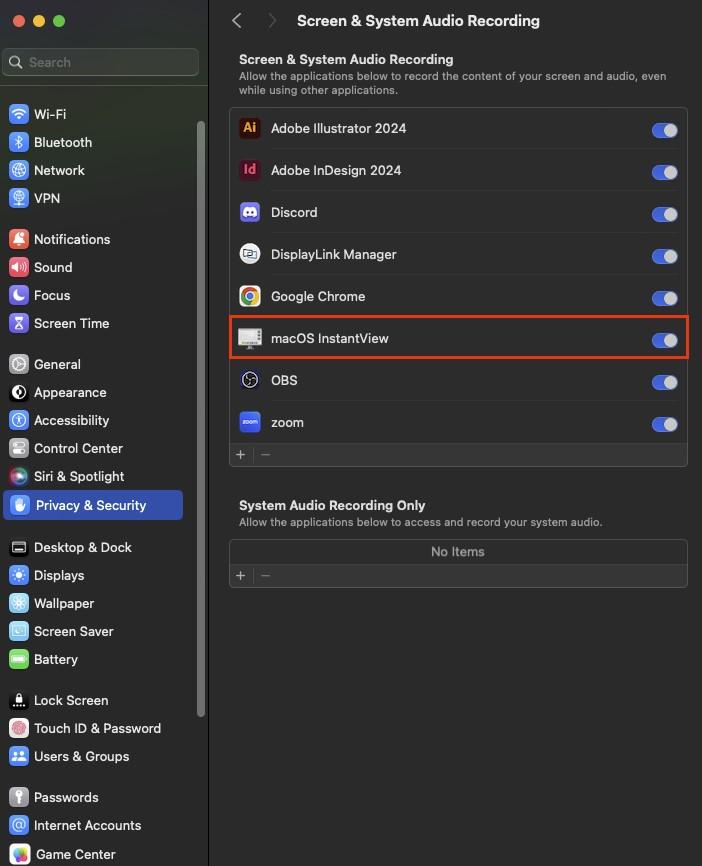
During the installation process for the Silicon Motion drivers, you will be requested to allow “Screen Recording” for macOS InstantView. Additionally, you may see a notification during the macOS InstantView installation process. However, we understand sometimes these may get lost in a sea of information and other notifications.
You can check whether the Screen Recording permission has been enabled for macOS InstantView in your Mac's “Privacy & Security” settings.
How Do I Enable Screen Recording for macOS InstantView?
If you have not enabled “Screen Recording”, please follow these steps:
- Click on the Apple icon (defaults to the top left corner of your screen) and select “System Preferences”.
- Navigate to and click “Security & Privacy”.
- In this window, select “Privacy”.
- A list will be presented, scroll until you find “Screen Recording” and click on it.
- Displayed on the bottom left, there is a lock icon, click on this to make changes.
- If prompted, login using your computer credentials to make changes.
- Check the box next to macOS InstantView.
- You will be prompted to “Quit & Reopen”, click this button.
- Click on the lock icon once more to save your changes.
Note: Some of these steps may vary slightly based on your macOS version.
You should now be able to see your displays on your docking station or adapter. If you have completed the above steps successfully and still do not see your displays, please reach out to our support team at support@plugable.com.
Applicable To
- Plugable UD-768PDZ, UGA-HDMI-S, UGA-DP-S, UGA-HDMI-2S, USBC-768H4
- Macs running macOS Catalina (version 10.15) or newer, where Screen Recording permission are required
