
Windows defaults to putting the computer to sleep when the lid is closed, even if there are external displays and devices connected, we can change this setting to enable closing the lid while using a docking station.
Recommended Setup
To ensure the computer can reliably function with the lid closed there are some requirements and recommendations:
- The system should be powered: This can be from a USB Type-C Docking Station with host charging, or by connecting the laptop's original power source.
- There should be at least one external display connected, this can be through a docking station, or directly to the computer.
- There should be a keyboard and mouse connected, either through a docking station, USB Hub, or directly to the computer.
Windows 11 24H2 and Newer
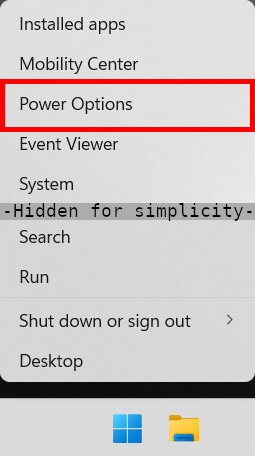
- Right-click on the Start menu and select Power Options from the context menu
- Expand the Lid, power & sleep button controls sub-section
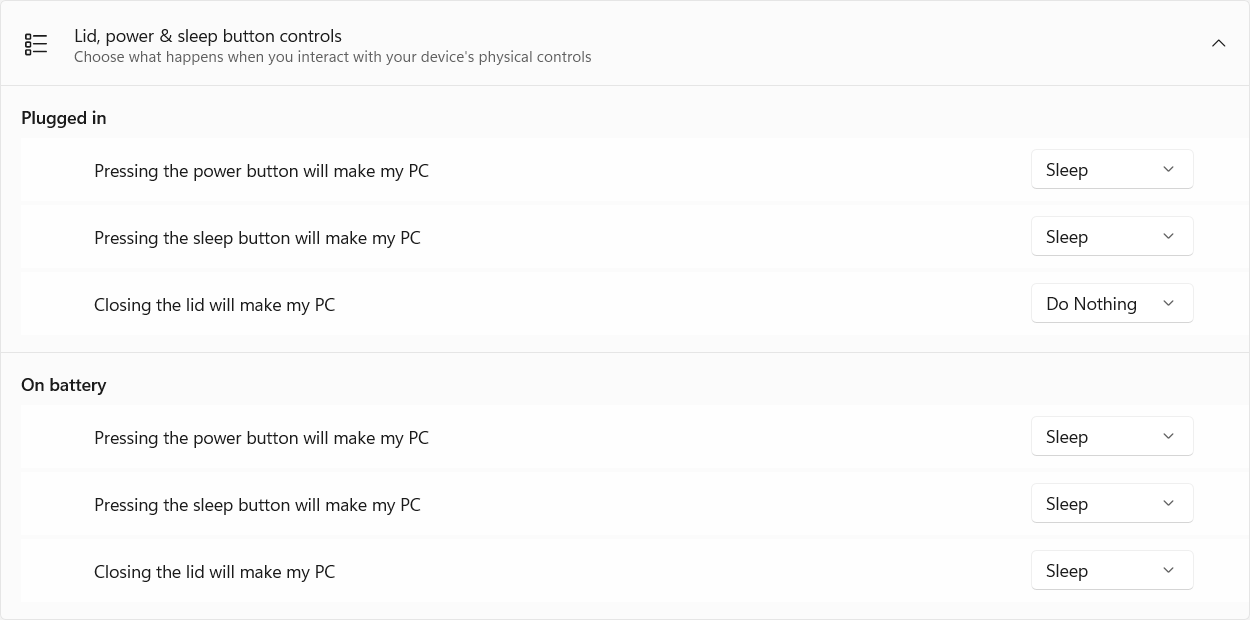
- Under Plugged in select Do Nothing from the Closing the lid will make my PC context menu
Windows 11 23H2 and Earlier
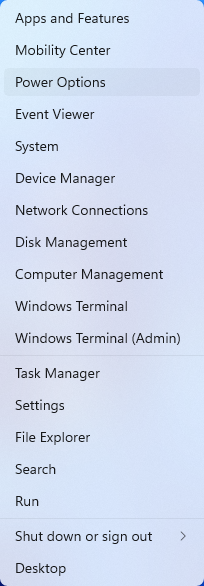
- Right-click on the Start menu and select Power Options from the context menu
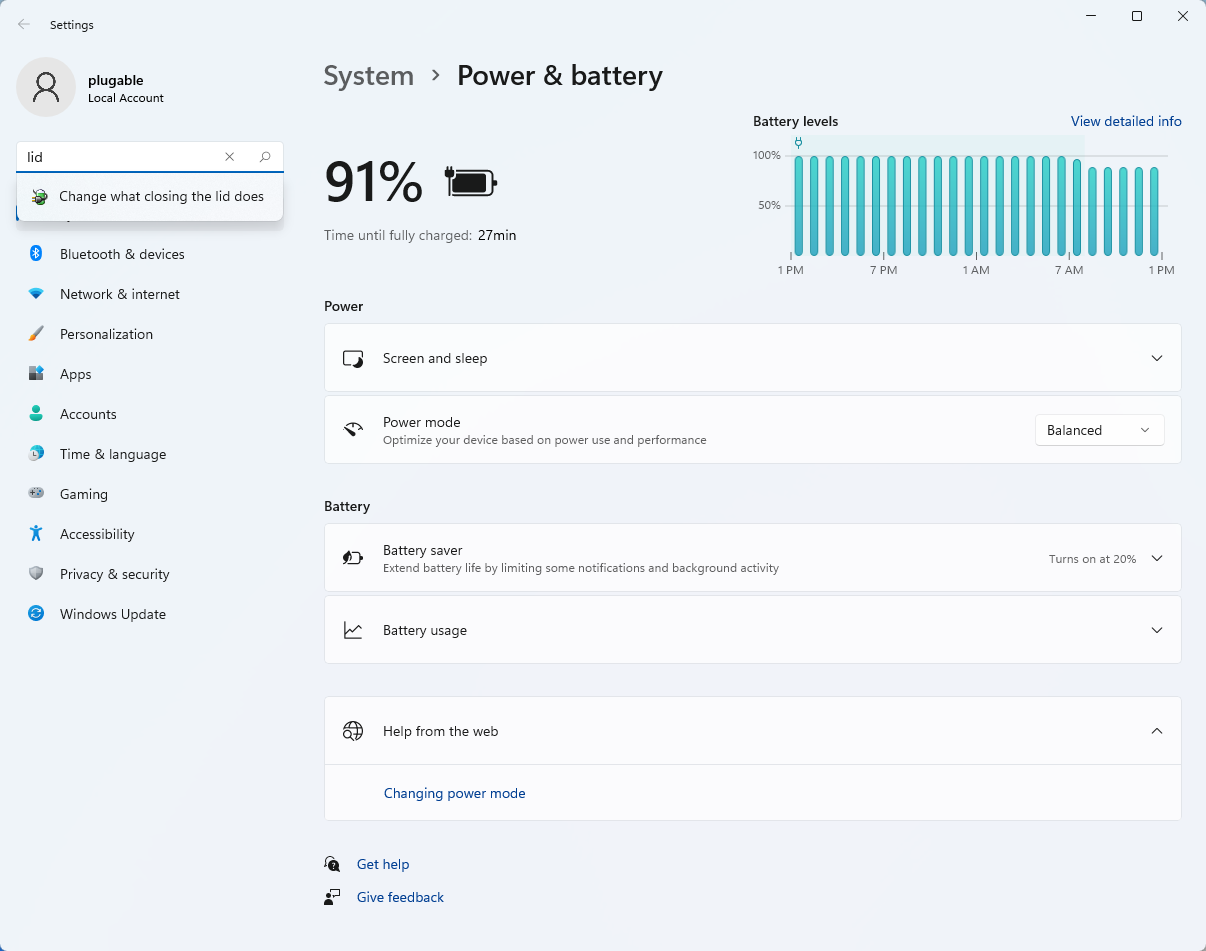
- In the upper left corner of the settings window, in the search box, type "lid" then select Change what closing the lid does from the search results
- Make sure the setting for When I close the lid under the Plugged In column is set to Do Nothing
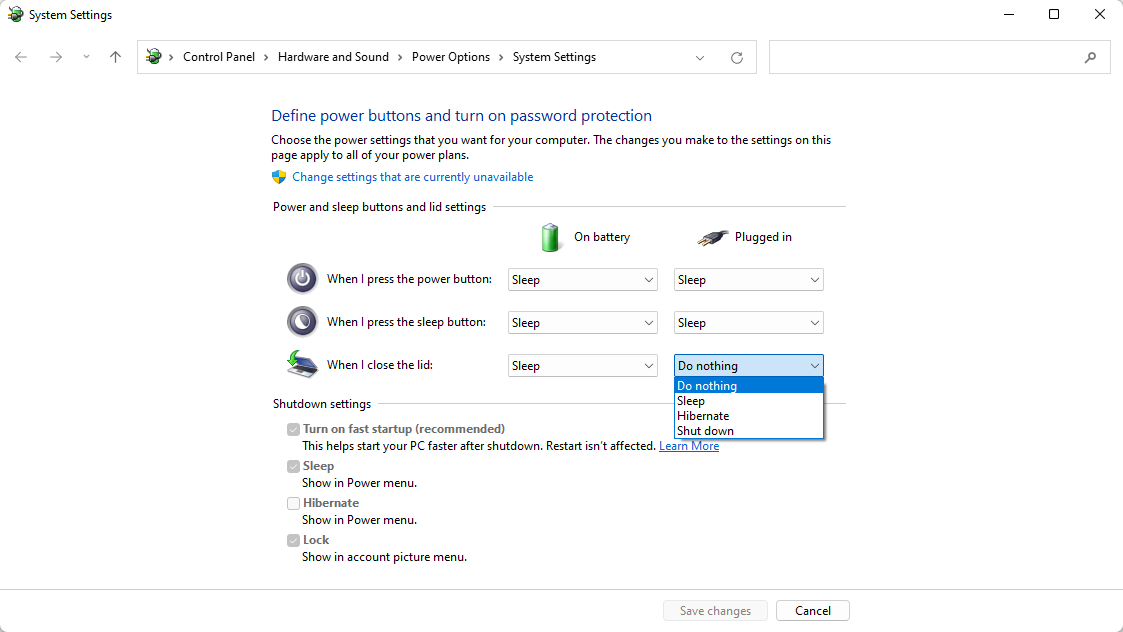
- Click the Save Changes button to apply the new settings.
Windows 10
- Start by right-clicking on the Start button and select Power Options from the menu.
- From the right side of the Power Options settings page, select the blue link for Additional power settings
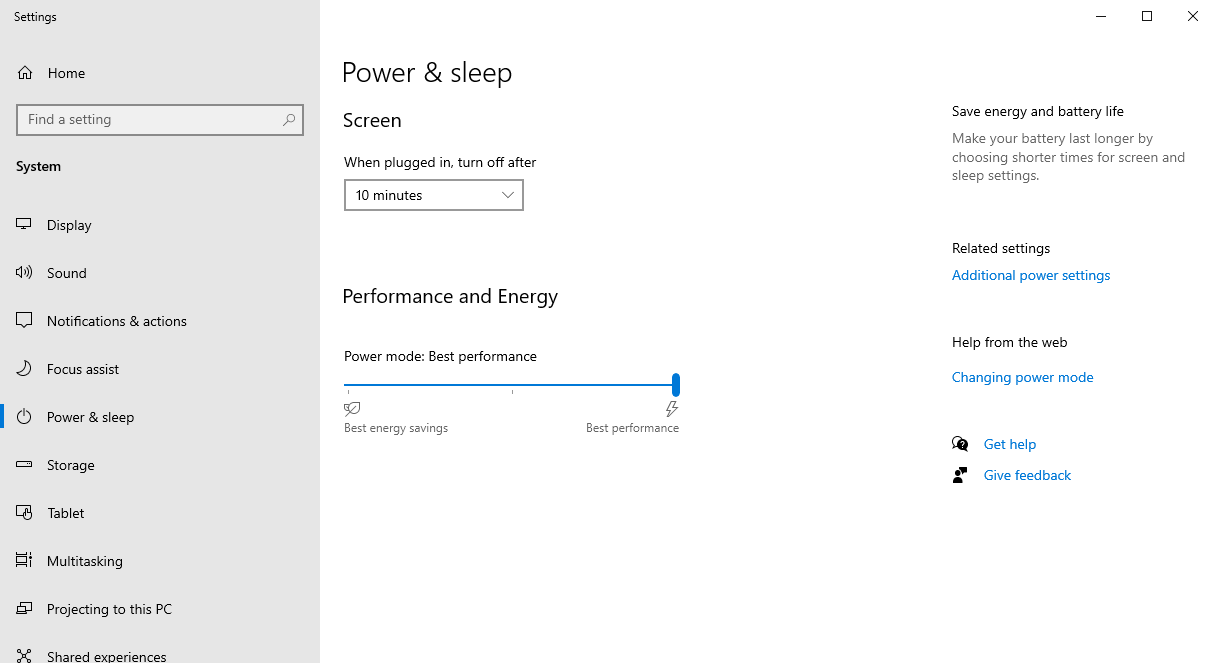
- From the choices present on the left-hand side of the Power Options window, please click on Choose what closing the lid does
- Make sure the setting for When I close the lid under the Plugged In column is set to Do Nothing
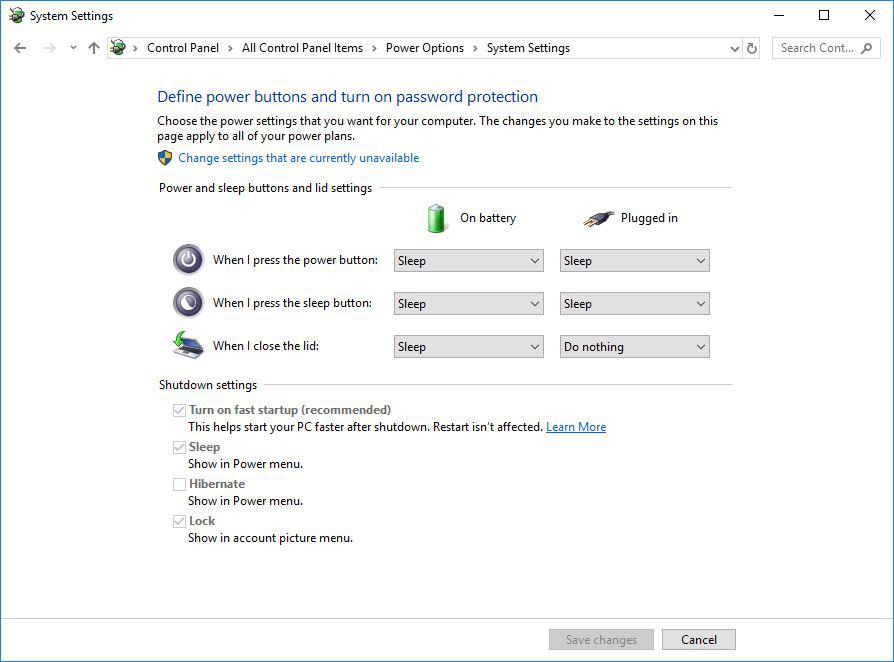
- Click the Save Changes button and restart the system (making sure that the laptop's power adapter is also connected) and test the behavior again.
Closing the lid should no longer put the computer into sleep mode when an external display and power source is connected, instead one of the external displays should now become the Primary display with the desktop icons instead of the laptop's built-in display.
When to open the lid?
The laptop lid may still need to be opened when performing any of the following:
- To power on the computer from a fully powered off state
- To log into the computer if logged out or if the computer is restarted with the lid closed
- To wake the computer from a deep sleep state (hibernation, or Windows hybrid sleep states)
If you have any questions please feel free to contact us at support@plugable.com and we'll be happy to help!
