
Originally authored by: Joshua Henry, March 12, 2015
It's happened to almost all of us at one point, your computer or external hard drive fails and panic sets in. Perhaps your files haven't been backed up yet or this drive is the only backup. One way or another, you made it to us and bought one of our docking stations. Now what do you do?
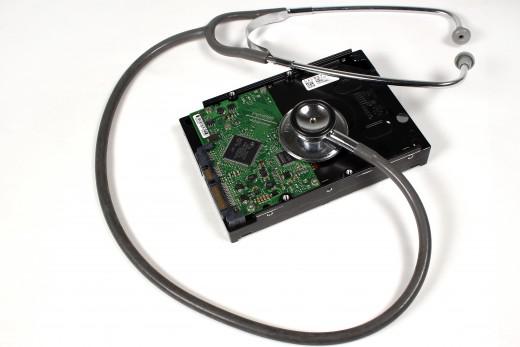
Because one of the most common reasons for buying a Plugable hard drive docking station or USB Type-C NVMe enclosure is to recover data off of a SATA 3.5-inch hard drive, 2.5-inch SSD, or NVMe SSD we wanted to talk about some issues our customers frequently experience. The following steps apply to our USBC-SATA-V, and USBC-NVME but are similar for our entire Plugable Storage System lineup. They also apply to storage that are installed inside your computer and potentially other docking stations/enclosures/adapters.
The most important thing to keep in mind is that data recovery is often best left to trained technicians and anything you do to recover data on your own could make recovering the data impossible, even for a data recovery specialist.
Internal Hard Drives
Our hard drive docking stations are quite useful for recovering data from older desktop or laptop computers because they support both 2.5-inch and 3.5-inch SATA hard disk drives (HDD) and solid-state drives (SSD). While our USB Type-C NVMe SSD enclosure supports more modern computers. If you're able to remove the drive from the computer to insert into our dock or enclosure, you're on your way to accessing the data. With that being said there are always scenarios where data may not be recoverable. There are many factors that can cause data to be inaccessible. Assuming for the moment that the hard drive in question hasn't failed completely and is not part of a RAID array, chances are our dock should be able to help access data off the drive.
Here are some common trouble scenarios for recovering data from an internal drive in our dock:
- Complete drive failure. This is fairly self-explanatory; the drive itself has mechanically or electronically failed, causing the drive to not be detected by the host computer or our dock - in this case, we recommend contacting a data recovery service. Complete failure can present in a computer failing to POST correctly, or failing to load the operating system (either loading indefinitely or experiencing a 'blue screen' event).
- Pending drive failure. HDDs and SSDs often fail slowly, most commonly encountering what is known as bad sectors. This can lead to data corruption making data recovery extremely difficult or impossible. Other factors can also be present but are usually less likely such as intermittent electronics on the circuit board, failing drive bearings, etc., some data recovery software may be able to recover data but continued use of the drive may cause further degradation.
- Partition / filesystem damage from improper shutdowns, viruses, etc. So long as the data has not been overwritten this can often be recovered with specialized software. While this is beyond the scope of our support, a USB storage adapter can help to attach the drive to a recovery computer for use with 3rd party recover software.
- Incompatible filesystem(s) with the host data recovery computer. For example, Windows systems cannot natively access data from Mac or Linux/Unix formatted drives, we'll touch more on this later.
- Drive is part of a RAID array like RAID0, RAID10, RAID5, or RAID6. A drive from a RAID1 "Mirror" is the only common kind of RAID array allowing data recovery from a single drive. In a RAID1 all data is written to both drives allowing for recovery from a single drive in case the other drive fails.
-
Whole disk software based encryption such as Microsoft BitLocker / EFS, TrueCrypt, and others.
- We speak more to connecting a BitLocker encrypted drive to another Windows system in our How To - Connect a Windows Operating System Drive to a New Computer.
- Specialized backup and partition software such as Norton GoBack and some versions of Acronis can cause issues and should be removed/disabled if possible prior to data recovery.
Permanently Attached Storage
Some computers include soldered-down storage, for example the Apple M-Series based systems, many ChromeBooks and ultra-portable or low-cost Windows notebooks have done away with removable storage and RAM completely opting for soldered down components to save cost and space. For these system data recovery is virtually impossible and the need for reliable backups is even more important.
External Hard Drives
Hard drives extracted from external enclosures or drives used in other docking stations will have many of the same potential issues that we just talked about for internal drives but do introduce other new scenarios. A typical scenario is the power adapter or USB port on an external drive has failed. The hard drive inside the failed enclosure is removed and the "bare" drive is inserted into our hard drive docking station to attempt recovery. Or sometimes a drive that was used in another dock is inserted into ours or vice versa.
Here are some common scenarios with for recovering data from an external drive in our dock:
- All of the above scenarios from our Internal Hard Drives list apply.
- Whole disk hardware level encryption. This can be in the form of a drive sold intentionally to protect against data theft or unintentionally where what consumers believe are standard hard drives from companies such as Western Digital (the most commonly found in our experience) are written to using a form of proprietary hardware encryption which prevents the drive from being read in any enclosure except for the one the drive shipped with.
- Sector emulation. See our Understanding Large SATA Drive Compatibility blog post for more details. “Some docks have a non-standard sector emulation feature that enables using capacities above 2TB on Windows XP 32 bit. But this requires that drives initialized and formatted in a special way, and NOT be used with other SATA controllers in desktop PC’s or other drive docking stations, unless those units also have a matching firmware version and support for this feature. Plugable USB SATA docks do not support sector emulation for XP. Rather, we’ve chosen to support 3TB+ Advanced Format drives in the standard way without any emulation.”
Determining if your Drive is Healthy or Failing
One of the first steps is finding out if the drive you are trying to recover data from is in good health. Often a drive appears to be working fine until you try to copy large amounts of data. Sometime common signs of a failing drive are during a transfer a file cannot be read and the data transfer may fail, often with a cryptic error such like “Cannot copy my.file: Data error (cycle redundancy check)”, files could transfer but be corrupted, transfer speed is much slower than expected, and/or the drive drops offline during transfers requiring the dock to be reset.
Usually the first course of action would be to check the S.M.A.R.T. status of the drive. This can indicate signs of failure in a drive like bad sectors or read/write errors. There are several free (or free trial) utilities available for Windows and Mac that can be found online. Here’s what we recommend:
- Windows – CrystalDiskInfo (free)
- Windows/Linux/macOS - smartmontools (free/open source)
If the drive appears healthy after checking with a SMART utility but is obviously showing signs of irregular behavior, we recommend to download and install the advanced diagnostic utility from your hard drive manufacturer. Unfortunately for Mac users this isn’t an option. Here are some common drive manufacturer diagnostic links for Windows:
Determining the Filesystem of the Drive
A common scenario we run into is a customer will take a hard drive out of another computer or device like a network attached storage (NAS) device and try to recover the data with our dock only to find that the host computer can see the drive but can’t actually read the data on it. For a Windows user this would be apparent when looking in the Device Manager and seeing the drive listed, but the drive not being mounted and accessible from Windows Explorer. A Mac user would similarly check in Disk Utility for the drive if it is not accessible from the Finder. This is because most NAS devices run Linux internally and use Linux file systems like EXT3 or EXT4.
The first step is to identify where the drive came from prior to being used in our docking station. Was this drive from another Windows computer? Was it from a Mac, or perhaps a Linux computer? How about a NAS device or external hard drive? By knowing this information we can look for information about what type of filesystem is on the drive.
Generally drives used with windows will be formatted with NTFS, Apple uses APFS, and Linux will generally use EXT4, each of these can be accessed from their respective operating systems, and sometimes from another operating system with a 3rd party driver (Linux does have built-in support for NTFS however with limited performance for now).
Next you’ll need to find out if your computer can support the filesystem of the drive in question. Here’s a basic list of what filesystems are supported by OS:
- Windows XP, Vista, 7, 10, and 11 (with proper update installed) and higher can read and write to FAT(16), FAT32, ExFAT and NTFS.
- Mac OS X 10.6.5 and higher can read and write to FAT(16), FAT32, ExFAT, and HFS+ (Mac OS Extended Journaled or Case-sensitive, Journaled). Mac OS X 10.3 introduced APFS, 10.3 and later can only read but not write to NTFS (write can be enabled, but it is not recommended as it may be unstable).
- Linux (Ubuntu for example) can read and write to FAT(16), FAT32, ExFAT (with the proper package installed), NTFS, EXT2, EXT3, EXT4, JFS, and XFS. There other filesystems but they are far less common and not available for every Linux distribution by default: BtrFS, ReiserFS, UFS (Unix), ZFS.
Knowing what filesystems are supported will help you decide how to proceed. If you’re a Windows user and find the hard drive you need to recover data off of is from a Mac, either you need to install some 3rd party software to read it, or simply recover the data on a Mac system. If you’re a Mac user, you should be able to read data off of a Windows computer drive without too much issue.
The hardest part is recovering data from a Linux formatted drive (for example from a NAS) on a non-Linux computer. Whether you’re a Mac or Windows user, chances are if you’ve got any kind of NAS device in the home, it will be using a filesystem your computer cannot natively read. In our experience most consumer grade NAS units use EXT2/3/4 filesystems. For Windows users we recommend installing some 3rd party software. For Mac users, take a look at this blog post done by CNET. Alternatively you can boot to a live Linux USB flash drive to perform the recovery and save the data to an ExFAT formatted drive as this is accessible from all three major operating systems.
Copying Data
Assuming the drive is in good shape, after the drive has been connected, and the file system is mounted - which happens by default on most operating systems - data can simply be dragged and dropped (copied/pasted) from the external drive to the computer's internal drive, another external drive, or network location just like copying data between directories within the computer.
If the drive is failing, has corruption, or you are attempting to recover deleted files then 3rd party data recovery software may be required, this is beyond the scope of our support.
If you have any questions at all, please comment below or email support@plugable.com. We’re happy to help!
