
If your computer is sending audio to the wrong speakers, headphones, microphone, dock, or other audio device, you can change the default audio output or input device in your operating system's sound settings. The steps below cover Windows, macOS, and Linux.
How Do I Set the Default Audio Device?
Common audio devices you may want to switch to include:
- Bluetooth headsets, headphones, and speakers
- Speakers built into a display, such as a TV or monitor
- A USB sound card, digital audio converter (DAC), or analog to digital converter (ADC)
- USB microphones
- Audio jacks on a docking station
These steps don't apply to the Plugable Performance NIX HDMI Capture Card (USBC-CAP60).
Set Audio Output Device
Set Default Playback Device in Windows
- Check that your audio device is properly connected and that any necessary drivers are installed.
- If the audio device has its own power or volume controls, make sure it is turned on and is not muted or set to the minimum volume.
- Open the Windows sound settings.
-
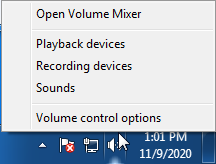
Windows 7/8.x: Right-click the speaker icon in the Windows taskbar and select Playback Devices. The Sound window will open with the Playback tab selected.
-
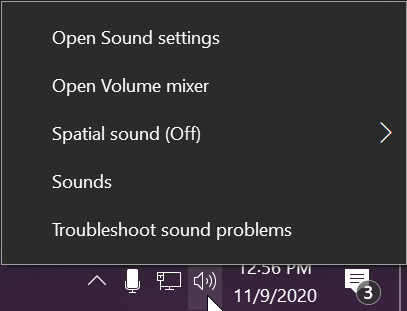
Windows 10/11: Right-click the speaker icon in the Windows taskbar and select Sound settings or Open Sound settings.
-
Windows 7/8.x: Right-click the speaker icon in the Windows taskbar and select Playback Devices. The Sound window will open with the Playback tab selected.
- In Windows 10 or Windows 11, select your preferred device under Output.
- If you need the classic Sound window, select More sound settings or Sound Control Panel, then select the Playback tab.
- Find the appropriate audio device.
- A Plugable USB 3.0 DisplayLink docking station or sound-enabled display adapter may appear as Plugable Audio.
- A Plugable Silicon Motion docking station or sound-enabled display adapter may appear as SMI USB Audio.
- A Plugable USB 2.0 docking station may appear as USB Multimedia Audio Device.
- A Plugable USB Audio adapter may appear as USB Audio Device.
- If you are using the classic Sound window, right-click the device and select Set as Default Device.
- Select OK to close the window.
Additional Configuration for Bluetooth
For Bluetooth pairing and configuration instructions:
Set Default Playback Device in macOS
- Open System Settings.
- On older versions of macOS, open System Preferences.
- Select Sound.
- Select Output.
- Select the audio device you want to use.
- A Plugable USB Audio adapter may appear as USB Audio Device.
Set Default Playback Device in Linux
- Confirm that the audio device is connected to the computer.
- If the audio device is self-powered, make sure it is powered on and is not muted or set to the minimum volume.
- Open the Settings application for your Linux distribution.
- Select Sound.
- Find the Output Device setting and select your preferred audio device.
- For additional audio controls, consider using PulseAudio Volume Control, package name pavucontrol, if supported by your Linux distribution.
Set Audio Recording Device
Set Default Recording Device in Windows
- Check that your audio device is properly connected and that any necessary drivers are installed.
- If the audio device has its own power or volume controls, make sure it is turned on and is not muted or set to the minimum volume.
- Open the Windows sound settings.
-
Windows 7/8.x: Right-click the speaker icon in the Windows taskbar and select Recording Devices. The Sound window will open with the Recording tab selected.
-
Windows 10/11: Right-click the speaker icon in the Windows taskbar and select Sound settings or Open Sound settings.
-
Windows 7/8.x: Right-click the speaker icon in the Windows taskbar and select Recording Devices. The Sound window will open with the Recording tab selected.
- In Windows 10 or Windows 11, select your preferred device under Input.
- If you need the classic Sound window, select More sound settings or Sound Control Panel, then select the Recording tab.
- Find the appropriate recording device.
- A Plugable USB 3.0 DisplayLink docking station or sound-enabled display adapter may appear as Plugable Audio.
- A Plugable USB 2.0 docking station may appear as USB Multimedia Audio Device.
- A Plugable USB Audio adapter may appear as USB Audio Device.
- If you are using the classic Sound window, right-click the device and select Set as Default Device.
- Select OK to close the window.
Additional Configuration for Bluetooth
For Bluetooth pairing and configuration instructions:
Set Default Recording Device in macOS
- Open System Settings.
- On older versions of macOS, open System Preferences.
- Select Sound.
- Select Input.
- Select the audio device you want to use.
- A Plugable USB Audio adapter may appear as USB Audio Device.
Set Default Recording Device in Linux
- Confirm that the audio device is connected to the computer.
- If the audio device is self-powered, make sure it is powered on and is not muted or set to the minimum volume.
- Open the Settings application for your Linux distribution.
- Select Sound.
- Find the Input Device setting and select your preferred recording device.
- For additional audio controls, consider using PulseAudio Volume Control, package name pavucontrol, if supported by your Linux distribution.
Applicable To
Windows, macOS, Linux, Plugable Docking Stations, USB-AUDIO, Plugable USB Audio Adapters
